Defender for Office 365 vs EOP — Decision Framework for Architects

Email is still the most common entry point for ransomware, business email compromise, and credential theft. The FBI Internet Crime Complaint Center recorded $3.05 billion in BEC losses across 24,768 complaints in 2025, and phishing and spoofing led every other category by complaint volume at 191,561 reports. Total cybercrime losses hit $20.877 billion, a 26% increase year over year. The architect's question is which Microsoft tier, and at what licensing cost, gets the organization to a defensible posture.

This article is the decision framework I use with clients. It separates what Exchange Online Protection actually does, what Defender for Office 365 Plan 1 adds, what Plan 2 adds beyond that, and the 5 questions I ask before recommending a tier. The goal is one position the architect can defend to the CFO and the CISO in the same meeting.
What EOP actually does
Exchange Online Protection is included with every Exchange Online mailbox. It is the baseline. The capabilities are:
Connection filtering at the IP level, which blocks known bad senders before message content is evaluated. Anti-malware scanning using signature-based engines, which catches known malicious payloads. Anti-spam filtering, which routes bulk and unwanted mail to junk. Zero-hour Auto Purge (ZAP), which retroactively moves messages from inboxes when threat intelligence updates after delivery. Authentication enforcement for SPF, DKIM, and DMARC, which validates the sending domain.

EOP stops a high volume of low-sophistication mail. Commodity spam, signature-detected malware, and unauthenticated senders rarely reach an EOP-protected inbox. What EOP does not do is evaluate previously unseen attachments in a sandbox, validate URLs at the moment a user clicks, or detect impersonation of executives by name and writing pattern. Those gaps are where targeted attacks land.
What Defender for Office 365 Plan 1 adds
Plan 1 closes the most common gaps in EOP. The four capabilities that matter:
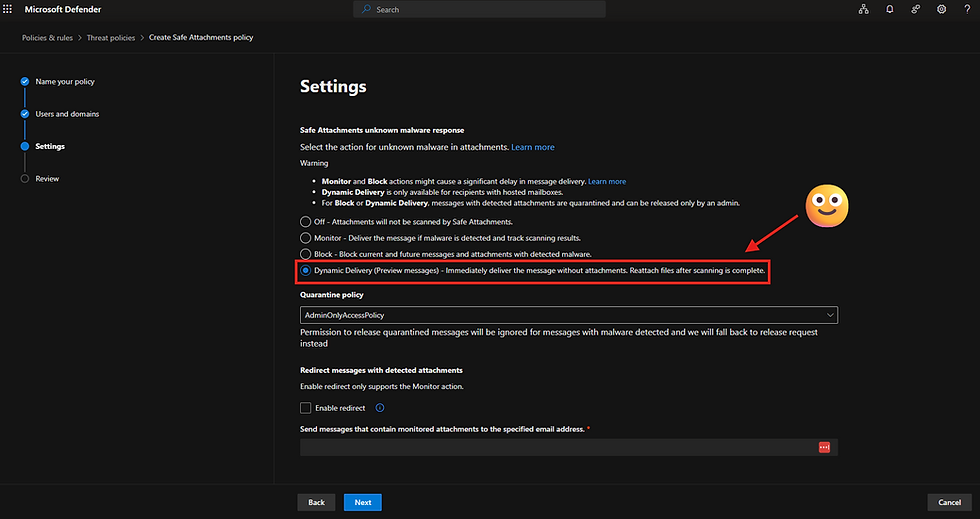
Safe Attachments detonates unknown files in a sandbox before delivery. Signature-based scanning misses anything new. Safe Attachments evaluates the file's behavior in an isolated environment, which catches zero-day payloads that have no existing signature. The latency cost is real. With Dynamic Delivery enabled, the body delivers immediately and the attachment unlocks once detonation completes, typically within minutes.
Safe Links rewrites URLs at the gateway and validates them at the moment of click. Phishing infrastructure rotates fast. A URL that was clean at delivery can be weaponized hours later. Safe Links checks the destination at click time, which catches that delayed-weaponization pattern. It also extends to Microsoft Teams and Office desktop apps, which closes the gap where a user pastes a phishing link into a chat.

Anti-phishing with Mailbox Intelligence and impersonation protection learns the sender graph for each mailbox. It flags messages where a high-value contact appears to be the sender but the underlying authentication does not match. Configurable impersonation protection lets the architect specify named users and domains. This is the control that targets CEO-fraud and BEC patterns directly.

Defender for SharePoint, OneDrive, and Teams scans files at rest and in transit through Microsoft 365 collaboration surfaces. Phishing campaigns increasingly stage payloads inside legitimate OneDrive shares because that domain bypasses URL reputation. Plan 1 inspects those files inside the tenant.
In a recent assessment, I saw this exact pattern manifest as a real incident. A threat actor impersonated the client's CEO with a phishing campaign designed to look like a routine OneDrive document share. By the time the campaign was contained, the result was 10+ compromised accounts and follow-on damage to multiple downstream enterprise systems. I wrote separately about the business case for Microsoft Defender for Identity in the context of that incident. The impersonation protection in Defender for Office 365 Plan 1 is the email-side control that targets exactly that attack pattern.
What Plan 2 adds beyond Plan 1
Plan 2 adds the tooling needed to investigate, respond, and reduce dwell time after a campaign lands.
Threat Explorer gives security operations 30 days of detailed message telemetry. Sender, recipient, URL, attachment hash, delivery action, and post-delivery action are queryable in one interface. When an analyst gets a phishing report at 9:00 AM, Threat Explorer answers the questions of who else received the message, who clicked, and which mailboxes still hold a copy in under 5 minutes.
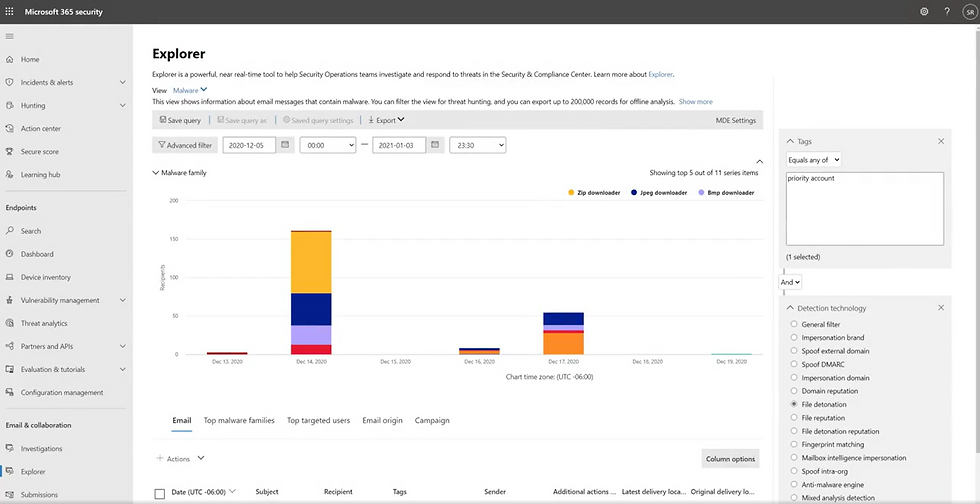
Automated Investigation and Response (AIR) executes investigation playbooks automatically. When a user reports a phishing message, AIR identifies the campaign, finds every recipient in the tenant, evaluates clicks and credential submissions, and queues a remediation action for analyst approval. The work that took 60 to 90 minutes per incident now takes under 10.

Attack Simulation Training delivers safe phishing campaigns to users and assigns targeted training to anyone who clicks. The simulation library matches current attacker tradecraft, which is more useful than a generic annual training video.

Campaign Views and Threat Trackers correlate related messages across the tenant into a single campaign object. The analyst sees the full attack, not 47 separate phishing reports.
The Mandiant M-Trends 2026 report puts global median dwell time at 14 days. Threat Explorer, AIR, and Campaign Views are what reduce that number inside a Microsoft 365 environment. These are the controls that determine whether an incident becomes a 6-figure consultant invoice or a same-day analyst ticket.
The business case
Cost framing for the CFO conversation:
Plan 1 standalone runs roughly $2 per user per month. Plan 2 standalone runs roughly $5 per user per month. Both are bundled into Microsoft 365 E5. Business Premium includes Plan 1. E3 includes neither.
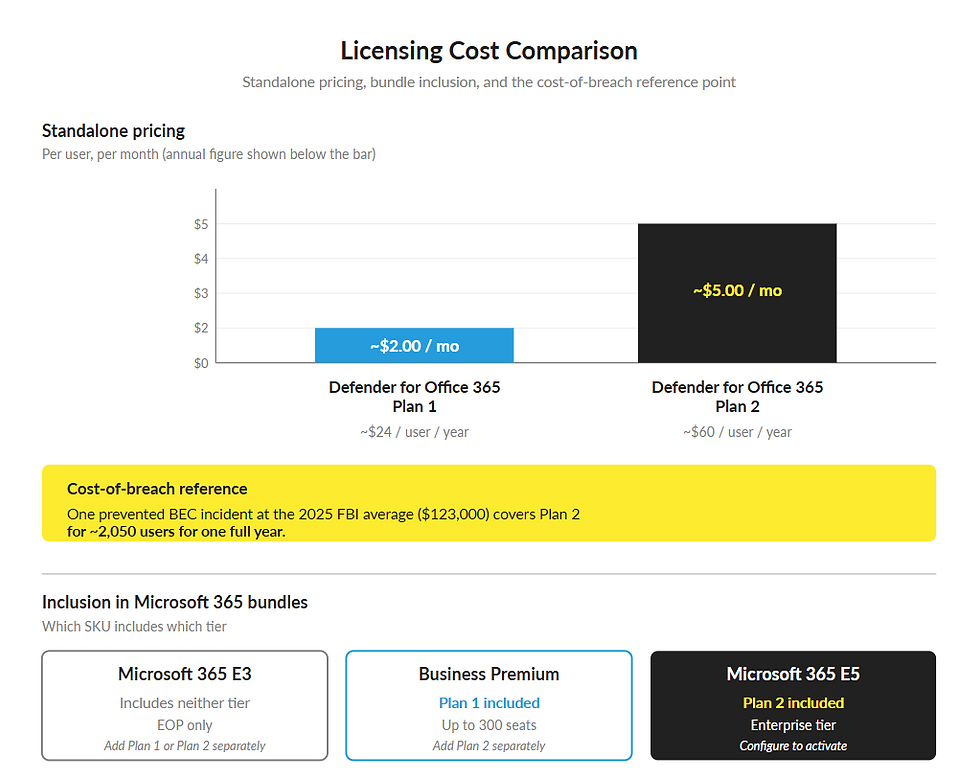
The cost-of-breach math is the part that decides the conversation. IBM's 2024 Cost of a Data Breach report puts the average phishing-vector breach at $4.88 million. The FBI 2025 figures show the average reported BEC loss per complaint at roughly $123,000. A single prevented incident in a mid-size tenant pays for years of Plan 2 licensing across the user base.
Every additional day a threat actor operates inside the tenant increases the number of compromised accounts, the volume of exfiltrated data, the number of downstream systems touched, and the cost of the eventual remediation. Plan 2 reduces that 14-day median to same-day containment. Plan 2 trades expected post-incident costs for predictable monthly licensing.

The decision framework
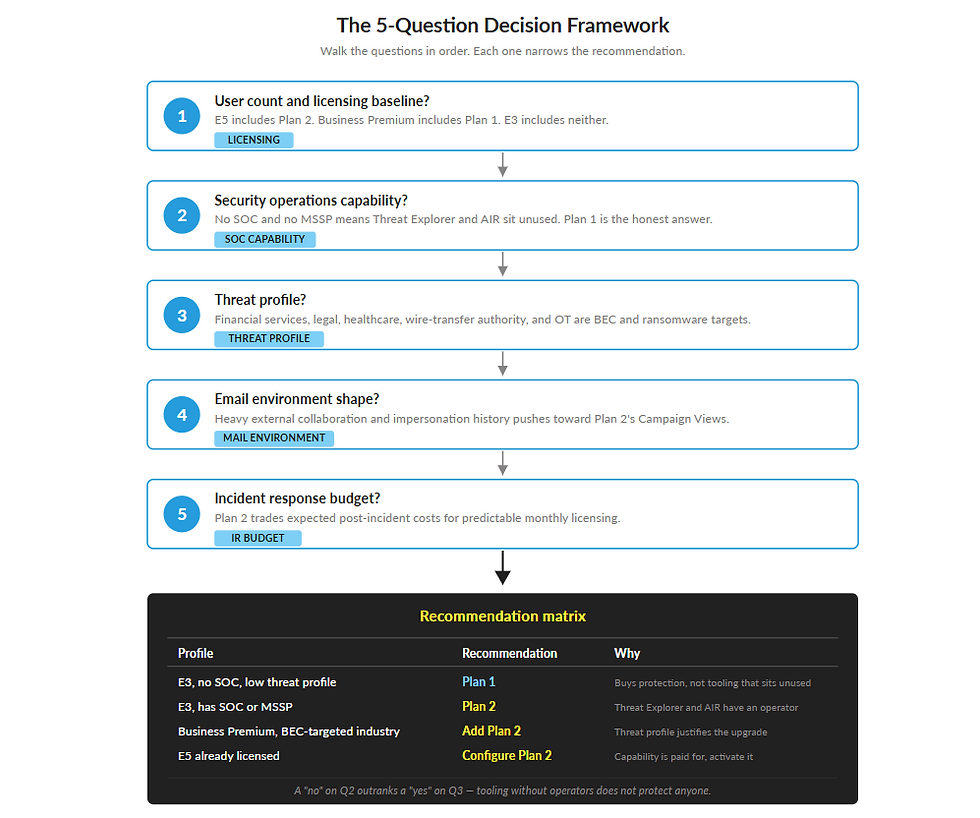
Five questions decide the tier:
What is the user count and licensing baseline? If the organization is already on E5, Plan 2 is included. The question is whether it is configured. If the organization is on E3, the standalone math applies. If the organization is on Business Premium, Plan 1 is in place and the question is whether to add Plan 2.
Is there a security operations capability? Plan 2's value is in the SOC tooling. If there is no SOC, no MSSP, and no plan to staff one, the Threat Explorer and AIR investment sits unused. Plan 1 is the honest recommendation in that scenario, with a path to Plan 2 when SOC capacity exists.
What is the threat profile? Financial services, legal, healthcare, and any organization with wire-transfer authority or sensitive client data are BEC targets. Manufacturing and operational technology environments are increasingly targeted for ransomware staging through email. A high threat profile pushes toward Plan 2 regardless of size.
What does the email environment actually look like? A tenant with heavy external collaboration, frequent vendor onboarding, and a history of impersonation attempts needs Plan 1's Mailbox Intelligence and Plan 2's Campaign Views. A tenant with mostly internal mail and a small vendor footprint can run effectively on Plan 1.
What is the incident response budget? This is the question CISOs and CIOs lead with. If the organization carries cyber insurance with a high deductible, has no IR retainer, and would face a 6-figure consultant bill on first incident, Plan 2's automated response and 30-day telemetry change the financial outcome. If the IR budget is low, Plan 2 trades expected post-incident costs for predictable monthly licensing.
The matrix the framework produces:
Profile | Recommendation |
E3, no SOC, low threat profile | Plan 1 |
E3, has SOC or MSSP | Plan 2 |
Business Premium, BEC-targeted industry | Add Plan 2 |
E5 already licensed | Configure Plan 2 |

Conclusion
EOP is the baseline that ships with every Exchange Online mailbox. Plan 1 closes the impersonation, sandbox, and click-time gaps that targeted email attacks exploit. Plan 2 adds the investigation tooling that reduces dwell time and the cost of the incidents that still get through.
The architect's job is to compare the organization's licensing baseline, SOC capability, threat profile, mail environment, and IR budget against those tiers and produce one defensible recommendation. The 5 questions above are the framework I use to get the recommendation approved in the same meeting it is presented.
Does Your Email Security Tier Match Your Threat Profile, SOC Capability, and Licensing Baseline?
Cloud Harbor Consulting partners with security architects and technical leadership teams to translate Defender for Office 365 versus EOP into one defensible decision across Microsoft 365. Schedule a conversation to walk the five framework questions and pinpoint where your current tier is leaving exposure or unused capability on the table.


Comments