Microsoft Defender for Office 365: Safe Links versus Safe Attachments

Updated: Sep 24
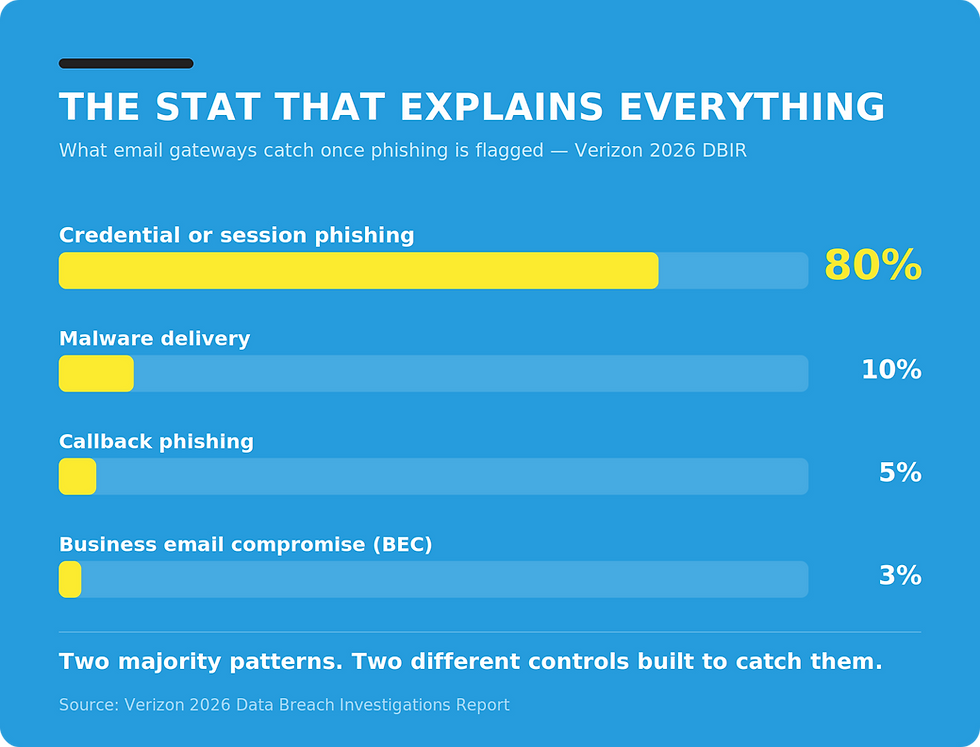
Verizon's 2026 Data Breach Investigations Report breaks down what email security gateways actually catch once phishing gets flagged: 80% credential or session phishing, 10% malware delivery, 5% callback phishing, 3% business email compromise. That split is the whole argument for this article. Safe Links and Safe Attachments are two separate controls built for two different majority attack patterns, and most architects configure them like they're one setting.
I wrote separately about the licensing decision between Exchange Online Protection and Defender for Office 365. That piece answers which tier to buy. This one skips the tier question and goes to the control level: what Safe Links and Safe Attachments each actually do, where they stop overlapping, and where I've seen them misconfigured in the field.
What Safe Links actually does
Safe Links checks a URL at the moment someone clicks it, not just once when the message arrives. In email, the link gets rewritten to a Microsoft-hosted redirect at delivery time. The rewrite is the mechanism that lets Defender run a fresh check every time the link is clicked, for as long as the message sits in the mailbox.
That timing detail is the entire value of the control. A URL can be clean at delivery and weaponized six hours later, once the attacker finishes staging the credential-harvesting page behind it. A one-time scan at delivery misses that. A check at the moment of click catches it. When Safe Links blocks a click, the user sees one of several warning pages depending on what tripped it: a scan-in-progress notice, a suspicious-message warning, a Phishing Attempt Warning, or a malicious-site block. That distinction matters for the help desk, because "the link was blocked" and "the message was confirmed phishing" are different tickets.
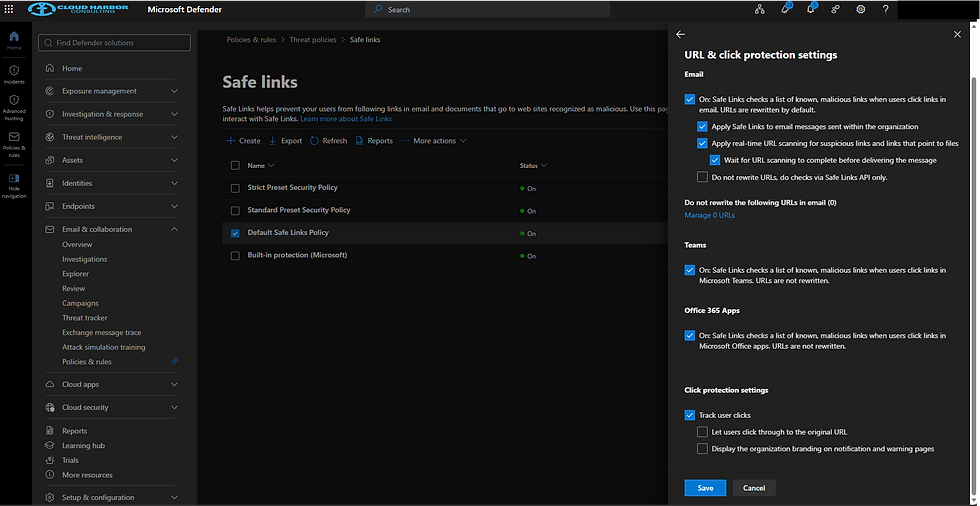
Teams and Office desktop apps work differently. URLs aren't rewritten there. Safe Links calls out to the same reputation service at click time instead, which is why coverage in Teams and Office web apps is a separate toggle from email and easy to leave off without noticing.
That Teams gap has a specific, common cause. Teams has its own built-in Malicious URL protection, on by default for new tenants, which scans links in chats and channels and shows the sender and recipient a warning. It warns without blocking. Safe Links for Teams is the separate, licensed control that blocks the click at the moment it happens, and it has to be turned on explicitly in a Safe Links policy. The two settings live in different admin consoles, use similar language, and produce completely different outcomes when a user clicks.
I worked with a client who believed Teams links were covered. Malicious URL protection was turned on in the Teams admin center, and that got read as the coverage. Safe Links for Teams was never turned on in the Defender portal. An end-user clicked a link carrying a malicious payload, and the warning-only control had no mechanism to stop the click. The setting that was on only warns. The setting that blocks was never turned on.
What Safe Attachments actually does
Safe Attachments opens the file before it reaches the mailbox. Unknown attachments get detonated in an isolated environment, and Microsoft's own documentation puts typical detonation time at around 15 minutes. That's long enough to catch a payload with no existing signature, because the check is behavioral, not pattern-matching against known malware.
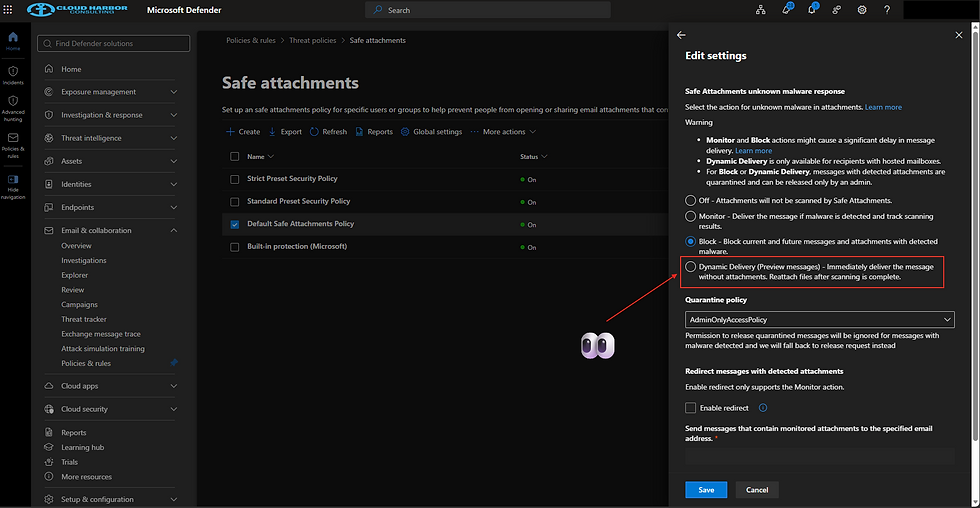
The action you set on the policy changes what happens during that wait. Block holds the entire message until a verdict comes back. Dynamic Delivery releases the message body immediately and attaches the file once detonation clears, which removes the delay for the user but means the body and the verdict are decoupled for a few minutes. Monitor delivers everything up front and evaluates after the fact, which is the option that leaves a real window open.
Safe Attachments also extends to SharePoint, OneDrive, and Teams, but that's a separate global setting from the mail-flow policy. Phishing campaigns increasingly stage payloads inside a OneDrive share specifically because that domain carries default trust. If that coverage isn't turned on, the file-scanning half of Defender for Office 365 simply isn't running on the surface where attackers are choosing to land. Microsoft 365 E5 adds one more layer on top, Safe Documents, which detonates files opened directly in Office apps even when they didn't arrive through email at all. It's a narrower control, but it closes the gap for files that come in through a USB drive or a download link Safe Links never saw.
How the two controls differ
Safe Links defends a moment that recurs. Every click gets a fresh check for as long as the message exists. Safe Attachments defends a moment that happens once, at delivery. Once a file clears detonation, it isn't rescanned by Safe Attachments. Zero-hour Auto Purge can still pull a message back out of a mailbox within 48 hours if Microsoft later confirms it was malware, but that's a separate, retroactive mechanism. It doesn't re-detonate the file.
That asymmetry is the thing to hold onto. A phishing URL that goes bad after delivery is still inside Safe Links' coverage window. A file that gets past detonation, through an encrypted archive Defender can't open without a password, or through a payload that only activates under conditions the sandbox didn't trigger, doesn't get a second look. Each control is built around a different assumption about when the threat becomes real. An architect who treats "Defender for Office 365 is enabled" as one fact instead of two is missing where each control's coverage ends.
The business case
The Verizon split tells you where tuning time is worth spending. If 80% of what your gateway is catching is credential or session phishing, the click-time behavior in Safe Links, not just whether it's turned on, is where a misconfiguration costs the most. Internal message protection off, or the warning page set to let users click through anyway, quietly removes the recheck that makes the control worth having.
The dollar stakes back that up. IBM's 2026 Cost of a Data Breach Report puts the global average breach cost at $4.99 million, up 12% year over year, and names phishing the most common initial attack vector for the fourth consecutive year. A harvested credential doesn't sit idle once it's stolen. It gets used, and Mandiant's M-Trends 2026 report puts the global median dwell time, the gap between initial compromise and detection, at 14 days, up from 11 the year before. Every one of those days is more lateral movement, more downstream systems touched, and a larger remediation bill by the time the incident is contained.
The Teams example above is exactly this kind of gap in dollar terms. Closing it required someone to notice that a free, warning-only control and a licensed, blocking control were sitting in two different admin consoles with similar names.
The choice between Block and Dynamic Delivery is a business decision, even though it's configured as a technical setting. Block adds zero risk from an unscanned file reaching a mailbox, at the cost of a delay users notice. Dynamic Delivery removes that delay and trades it for a short window where the message body and the attachment verdict are decoupled. The right answer depends on the organization's risk tolerance, not the policy default. The architect's job is making sure the business made that call deliberately, rather than inheriting it from whatever the tenant shipped with.
Configuration and validation checklist
For Safe Links:
Apply protection to internal messages, not just inbound mail. A compromised internal account sending a phishing link to a colleague is inside this control's coverage only if internal application is turned on.
Turn off "let users click through" on the warning page. Leaving it on turns a block into a suggestion.
Confirm Teams and Office app coverage explicitly, and don't mistake it for Teams' built-in Malicious URL protection. That control is on by default, free, and only warns. Safe Links for Teams is the separate, licensed setting that blocks the click, and it doesn't inherit from the email policy.
Use the Tenant Allow/Block List for exclusions instead of the per-policy "do not rewrite" list. Teams and Office web apps don't read the policy-level exclusion list, so exceptions set there silently fail to apply everywhere.
For Safe Attachments:
Set the action to Block or Dynamic Delivery in production. Monitor alone means the message is already in the mailbox before a verdict exists.
Turn on SharePoint, OneDrive, and Teams coverage separately. It doesn't come with the mail-flow policy.
Plan for the encrypted-attachment gap ahead of time. A password-protected file can't be detonated without the password, so decide whether that means quarantine-and-release or a user-supplied-password workflow before it comes up during an actual incident.
For both:
Check Threat Explorer, not the policy toggle, to confirm the control is producing verdicts. A policy that's been enabled for 30 days with zero detections can mean the environment is clean, or it can mean the policy's scope is wrong. The toggle being on tells you nothing about which.

The takeaway
Safe Links and Safe Attachments aren't one feature with two names on the licensing sheet. They're tuned for two different majority attack patterns, running on two different timing models: one that rechecks continuously, one that checks once. Whether both are switched on is a licensing question. Whether each one is configured for the specific failure mode it's built to catch is the operational question, and it decides whether the tenant is protected or just looks protected in the portal. That second question is the one worth spending the next hour in the Defender portal answering.
Are Safe Links and Safe Attachments Configured, or Just Licensed?
Cloud Harbor Consulting partners with security architects and CISOs to turn a Defender for Office 365 tenant where both controls are switched on into one where each is configured for the specific failure mode it's built to catch. Schedule a conversation to run your current Safe Links and Safe Attachments setup through the timing-model distinction and the configuration checklist covered in this piece, and pinpoint where internal message protection left off, Safe Attachments set to Monitor instead of Block or Dynamic Delivery, or Teams coverage sitting on the free, warning-only control instead of the licensed one that blocks the click is leaving the click unblocked, the same gap your last tenant review assumed was already closed.

Comments