Microsoft Purview Information Protection: Governance Architecture for the SMB & Enterprise

An organization with an in-house legal function wanted Microsoft 365 Copilot for specific use cases. It set one requirement: content marked Attorney-Client Privileged is not summarized by Copilot and is not used as a cited source.
The reason is in Microsoft's documentation. Copilot prompts and responses are stored in the user's mailbox, and an eDiscovery case can search them. Retention policies apply to them, and so do eDiscovery holds. A summary of privileged content becomes a record that can be searched and held. Whether that record creates legal exposure is a question for the organization's counsel.
Summarized and cited are separate behaviors, and Microsoft documents a different control for each. Three controls meet the requirement: a Legal-only SharePoint site, a sensitivity label, and a DLP policy for Copilot. Each covers a different part of it.
The same blueprint works for a small firm and a large enterprise. The taxonomy, the license, and the owner change.
After using Copilot for certain use cases, the legal team grew comfortable with the product. They noticed Copilot was not including attorney-client privileged information in briefings or email drafts.
The taxonomy is a business decision
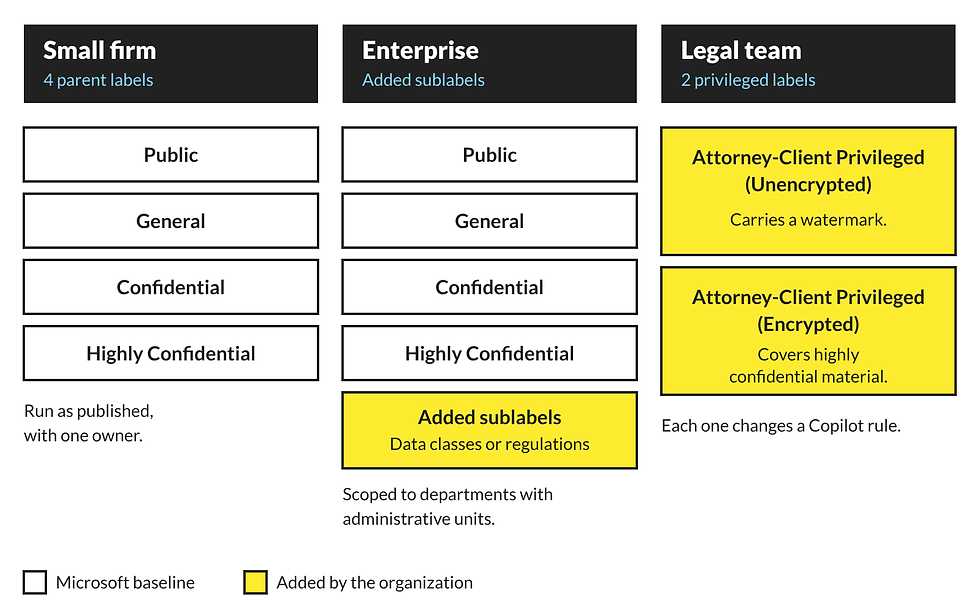
Microsoft's guidance starts with four parent labels: Public, General, Confidential, and Highly Confidential. Confidential and Highly Confidential each get three sublabels: All Employees, Specific People, and Internal exception. The guidance caps a taxonomy at 5 parent labels with up to 5 children each. It also warns against mixing "Confidential," "Restricted," and "Internal" as label names, because users find them confusing.
Organizations leave that starting point, and they should. A small firm can run it as published with one person who owns it. An enterprise adds sublabels for data classes or regulations and scopes them to departments with administrative units.
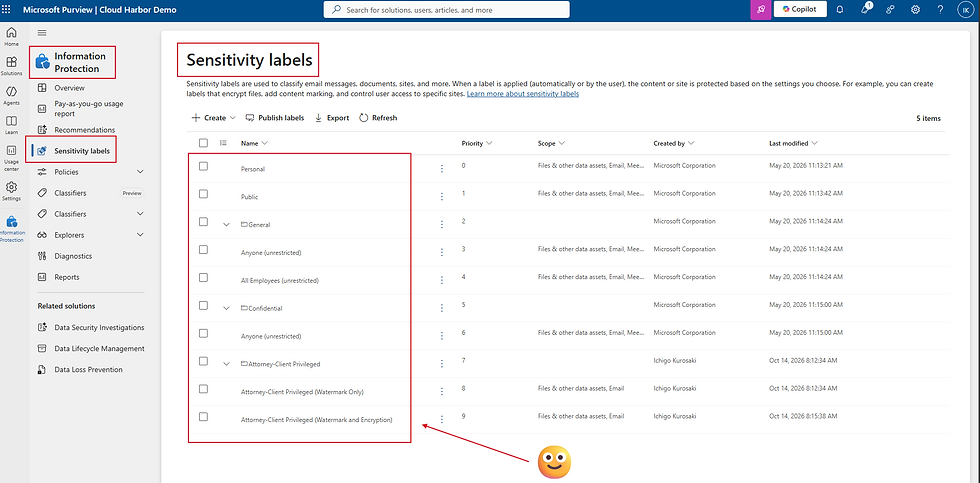
The legal team added two labels. Attorney-Client Privileged (Unencrypted) carries a watermark. Attorney-Client Privileged (Encrypted) covers highly confidential material. They do different things for Copilot.
The unencrypted label does not restrict Copilot by itself. Copilot output inherits the label of the content it uses. A DLP policy for Copilot that names the label makes Copilot skip the content. The encrypted label falls under the EXTRACT usage right, which Copilot honors. The permissions a label grants decide whether Copilot can display text from the content. Editor and Owner include EXTRACT. View-only does not. The person who applies the encryption is the Rights Management owner and always has EXTRACT.
A new label is justified if it changes a protection setting, a DLP rule, or a Copilot rule. Both privileged labels do.
One blueprint, six steps
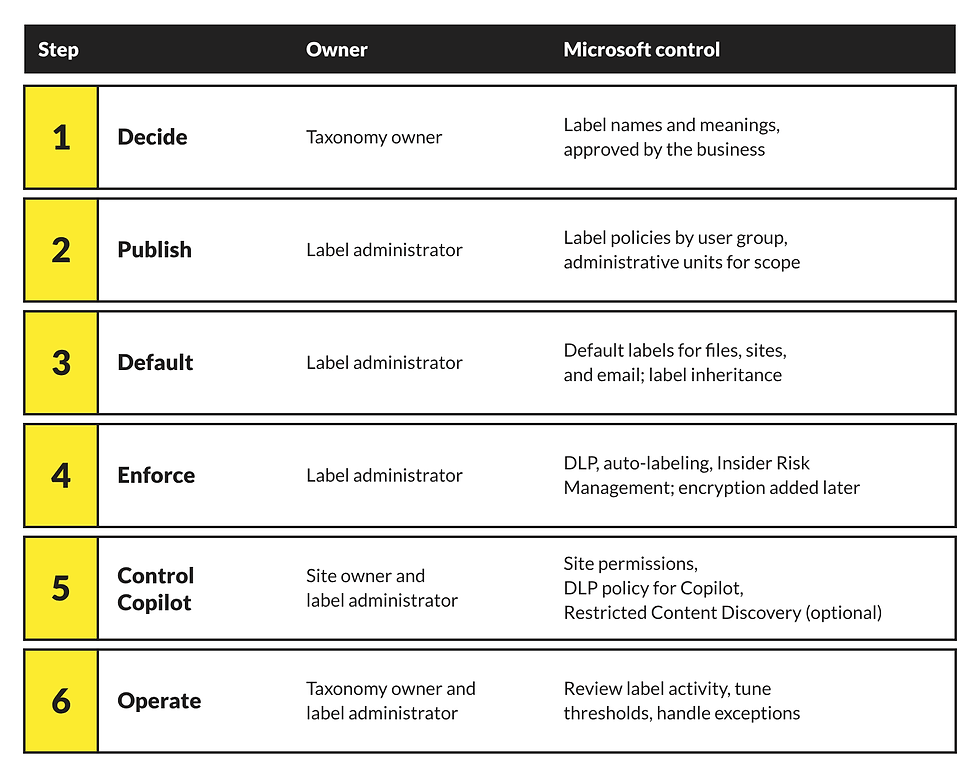
Every organization runs the same six steps, whatever its taxonomy.
Decide. A named owner approves each label's name and meaning.
Publish. Publish labels through label policies by user group. Pilot with a few users, then assign all users. Use administrative units where a department needs its own scope, and give admins the role with the fewest permissions.
Default. Set Confidential\All Employees as the default for files and sites, and General for email. Turn on label inheritance so an email takes the highest-priority label from its attachments. A default label takes priority over mandatory labeling, so set defaults first.
Enforce. DLP blocks "Anyone with the link" sharing and external sharing on labeled content. Service-side auto-labeling covers existing files, up to 500,000 files a day. Insider Risk Management flags label downgrades. Apply label encryption when the organization is ready, and leave it off on Day 1. Microsoft's Step 1 guidance follows the same order: default labels first, encryption for Confidential\All Employees added later.
Control Copilot. Permissions, a DLP policy for Copilot, and optionally Restricted Content Discovery.
Operate. Review label activity, tune thresholds, handle exceptions, and rerun the Copilot test each quarter.
Steps 3 and 5 depend on each other. A DLP policy for Copilot acts on content that carries the label, so a privileged document with no label is not covered by the policy. The legal team's users applied the label by hand. Enforcement coverage equals their labeling discipline. Library default labels and auto-labeling apply the label without the user, and both need E5.
Who owns what
Each step needs a named owner.
Taxonomy owner. Comes from the business: general counsel for the privileged labels, the CISO or compliance lead for the enterprise taxonomy, the owner in a small firm.
Label administrator. IT or an MSP builds the labels and policies.
Site owner. Controls membership. For the legal team, that is the Legal-only site's access list.
Users. Apply labels and justify downgrades.
Label priority needs change control. Microsoft's Step 1 guidance warns that a SharePoint library default of General does not apply when the Office client defaults to a higher-priority label such as Confidential\All Employees. Reordering labels changes which default wins.
Controlling what Copilot does with privileged content
Three controls act on Copilot.
Control | What it covers | License |
Legal-only SharePoint site | Who can reach the content, in summaries and citations | Included |
Label plus DLP policy for Copilot | What Copilot does with the content for users who can open it | E5 |
Restricted Content Discovery | Discovery in organization-wide search and Copilot responses | SharePoint Advanced Management (included with Copilot license) |
Permissions come first. The privileged documents live on a SharePoint site only the Legal team can open. Copilot returns only items the signed-in user can open, so a user outside Legal gets nothing from that site. A copy saved outside the site leaves the site's permissions behind, and the label stays with the file. That is the reason for the second control. Permissions cost no license. They depend on membership staying clean and the site staying off external sharing.
The DLP policy covers Legal itself. Legal users can open the documents, so Copilot can work with them. The policy uses the Microsoft 365 Copilot and Copilot Chat location, a condition on the sensitivity label, and the action "Prevent Copilot from processing content." Microsoft documents the result: Copilot doesn't access or use the content of a labeled item in its response. In testing, a watermark-only label with this policy kept Copilot from using the content. The policy names both privileged labels. The encrypted label already stops Copilot for users without EXTRACT, and the person who applies the encryption keeps EXTRACT as the Rights Management owner. The DLP rule covers that case.
The policy has limits. Only the Custom template supports the Copilot location. In Word, Excel, and PowerPoint, the policy is evaluated when the file opens. A label applied while the file is open takes effect the next time the file opens. The policy covers emails sent on or after January 1, 2025, and it doesn't cover calendar invites. A policy change takes up to 4 hours to reach Copilot. A rule can use a label condition or a sensitive information type condition, and a single rule can't use both.
Licensing decides whether this control exists. The Purview service description lists DLP to restrict Copilot from processing files and emails for Microsoft 365 E5, and lists "No" for Business Premium and E3. Below E5, the encrypted label gives a similar result for summaries. A user without EXTRACT gets no summary, and Copilot can reference the item with a link. The user who applied the label keeps EXTRACT.
Restricted Content Discovery is optional. It's a site-level setting that limits discovery in organization-wide search and Copilot responses. It doesn't change permissions, doesn't apply to OneDrive, and doesn't affect summarizing a document that's already open. Microsoft describes it as a temporary governance control.
On citations, Microsoft's documentation says a labeled item's content isn't used in the response, but the item could be available in the citations. Treat that as documented behavior and test it in your tenant.
Microsoft's documentation lists four limits. Copilot doesn't recognize labels on Teams meetings and chats, apart from meeting invites. Channel Agent in Teams checks EXTRACT only for the person who asked, and DLP can't block it. Copilot can reference encrypted content from the active Edge tab when DLP isn't applied in Edge. A label on a site or group isn't inherited by the files inside it.
The business case
A requirement written in testable terms can be audited. Each control has an owner, so the legal team can show which control meets which part of the requirement. Permissions limit who reaches the content. The label and DLP policy limit what Copilot does with it for the users who can.
Cost comes from two places. Permissions cost membership discipline. The DLP policy needs E5 for the users in scope. Restricted Content Discovery adds no cost beyond the Copilot license.
The risk mechanism: a response that doesn't use privileged content contains none of it, so there's no summary of it to retain, search, or hold.
IBM's 2026 Cost of a Data Breach report puts the global average breach at $4.99M, up 12%. Among organizations that reported a breach of an AI model or application, 92% lacked proper AI access controls. Roughly one in five organizations reported such a breach.
For the executive: E5 adds the DLP policy for Copilot. Below E5, an encrypted label covers summaries. Permissions on the content cost no license and apply to both.
What to do this quarter
Licensing sets how far you can go.
Business Premium. Manual labeling, and DLP for Exchange, SharePoint, and OneDrive. Name the principal as taxonomy owner and the MSP as label administrator.
E3. Adds scanner-based discovery.
E5. Adds service-side auto-labeling, library default labels, DLP for Teams, endpoint DLP, and DLP for Copilot. A governance group owns the taxonomy.
Then run the test.
Write the requirement as two statements: Copilot doesn't summarize the content, and Copilot doesn't cite it.
Put the content on a site with named membership, and review the membership.
Label a test file, then close and reopen it. Wait 4 hours after any DLP change. As a user with access, ask Copilot to summarize the file.
As a user without access, ask Copilot a question the file answers.
Record both results as audit evidence, and repeat each quarter.
Check these misconfigurations first:
Label priority overrides a library default.
Confidential\Internal exception has no encryption, and at higher priority it needs no justification.
The label mismatch email is disabled. Verify that Set-SPOTenant -BlockSendLabelMismatchEmail is set to $False.
Privileged documents are unlabeled, so the DLP rule never matches.
Site membership includes people outside Legal.
The DLP rule names only one of the two privileged labels.
Decide the taxonomy with the business, run the six steps in order, and test Copilot against the requirement as written. Permissions are the first control for citations. If you want the next piece, DLP policies that don't break the business is the one I'd write.
Who Has Tested What Copilot Does With Your Privileged Content?
Cloud Harbor Consulting partners with security architects and legal and compliance leaders to turn a one-sentence Copilot requirement into three controls that each have an owner in Microsoft Purview and SharePoint, with a Legal-only site, a sensitivity label with a DLP policy for Copilot, and a quarterly test that produces audit evidence at a license cost you can calculate before it runs. Schedule a conversation to walk your privileged content and pinpoint where unlabeled documents, loose site membership, and missing DLP coverage leave it available to Copilot.


Comments